Welcome to Mise en Party
How to get started with Mise en Party: find a recipe, plan the meal, shop for it, and cook it step by step, alone or with others.
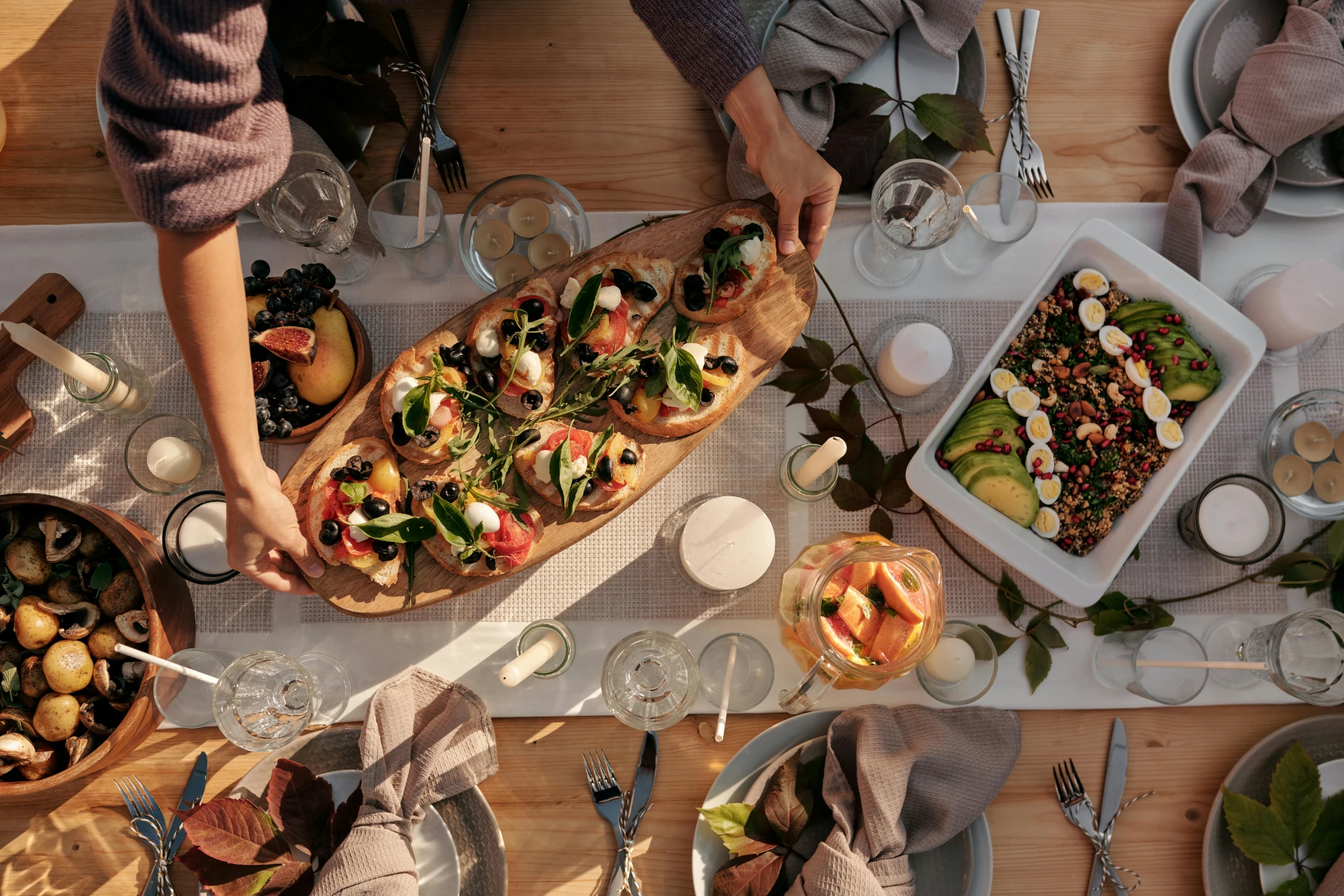
Unlike other meal planners, Mise en Party is both a meal planner and a cooking assistant. With its unique optimization process and recipe structure, Mise en Party minimizes the amount of time you spend cooking, while maximizing your time at the table.
Why modern cooking feels so limited
In these busy times, it sometimes feels like modern cooking can be summarized as:
Under five ingredients and five directions or it's not happening.
This constraint arises from our lack of time and the mental burden that comes with planning and cooking full meals. But it doesn't have to be this way! That's not to say we should shrug off our end-of-day exhaustion and cook a five-course meal every night. Rather, with the right spice blend, an already prepared sauce, and a side dish woven into the downtime of your favorite recipes, Mise en Party allows you to cook better food faster.
Getting started
At first, using Mise en Party may feel like a departure from your usual cooking routine, but once you get used to it, at least in my experience, it's hard to go back to other formats with how much Mise en Party lessens the mental load of cooking.
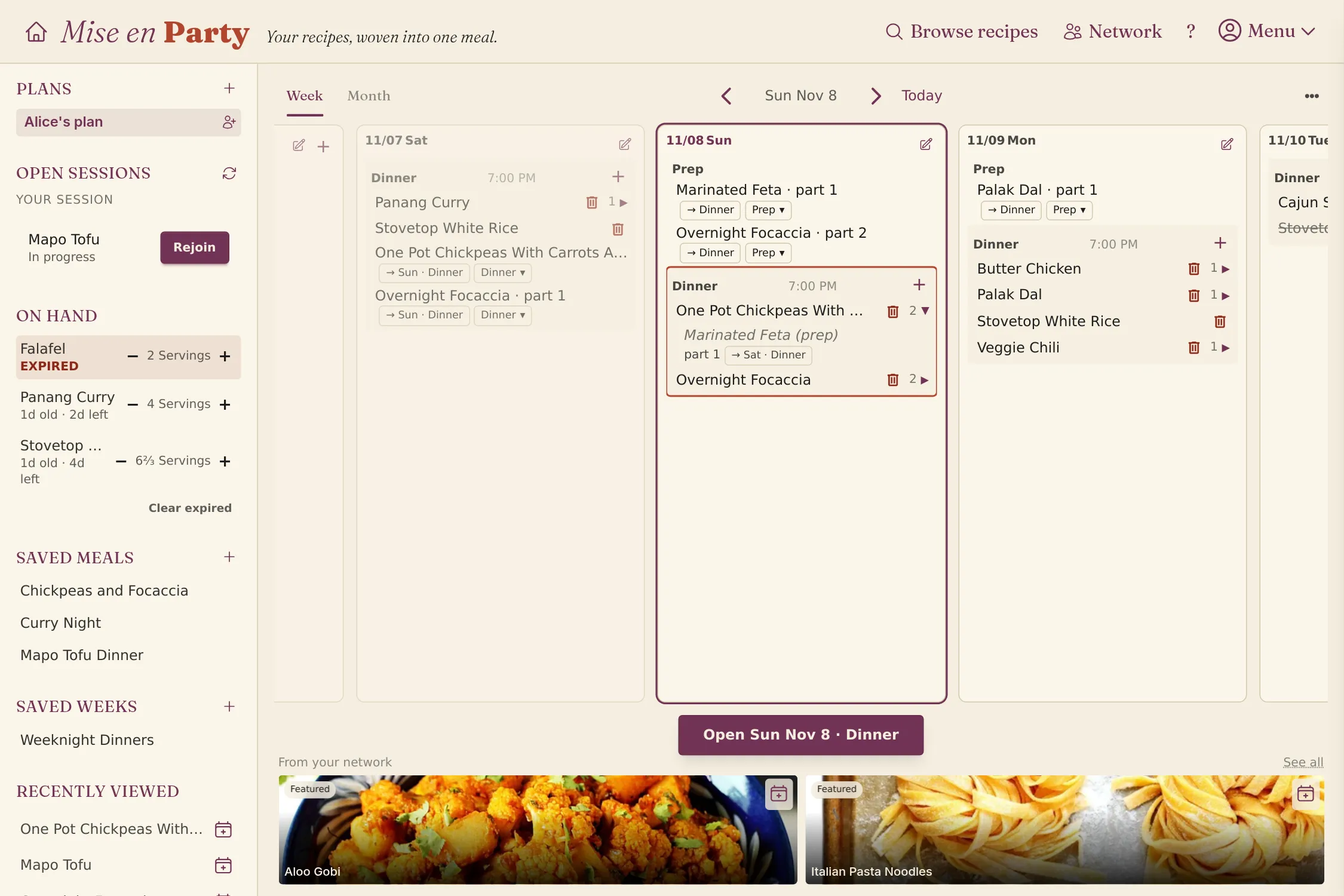
The home page is split into three sections: a quick access menu on the left, your current planning schedule in the center, and a featured list of recipes along the bottom.
The quick access menu contains your personal, shared, and household plans, the remaining amount of any meals you have cooked, saved meals, and recently viewed recipes.
The center schedule shows the days of the week and any meals you have scheduled on them. Using the tabs you can toggle to a monthly view and select days there to jump to a future or past date.
1. Browse
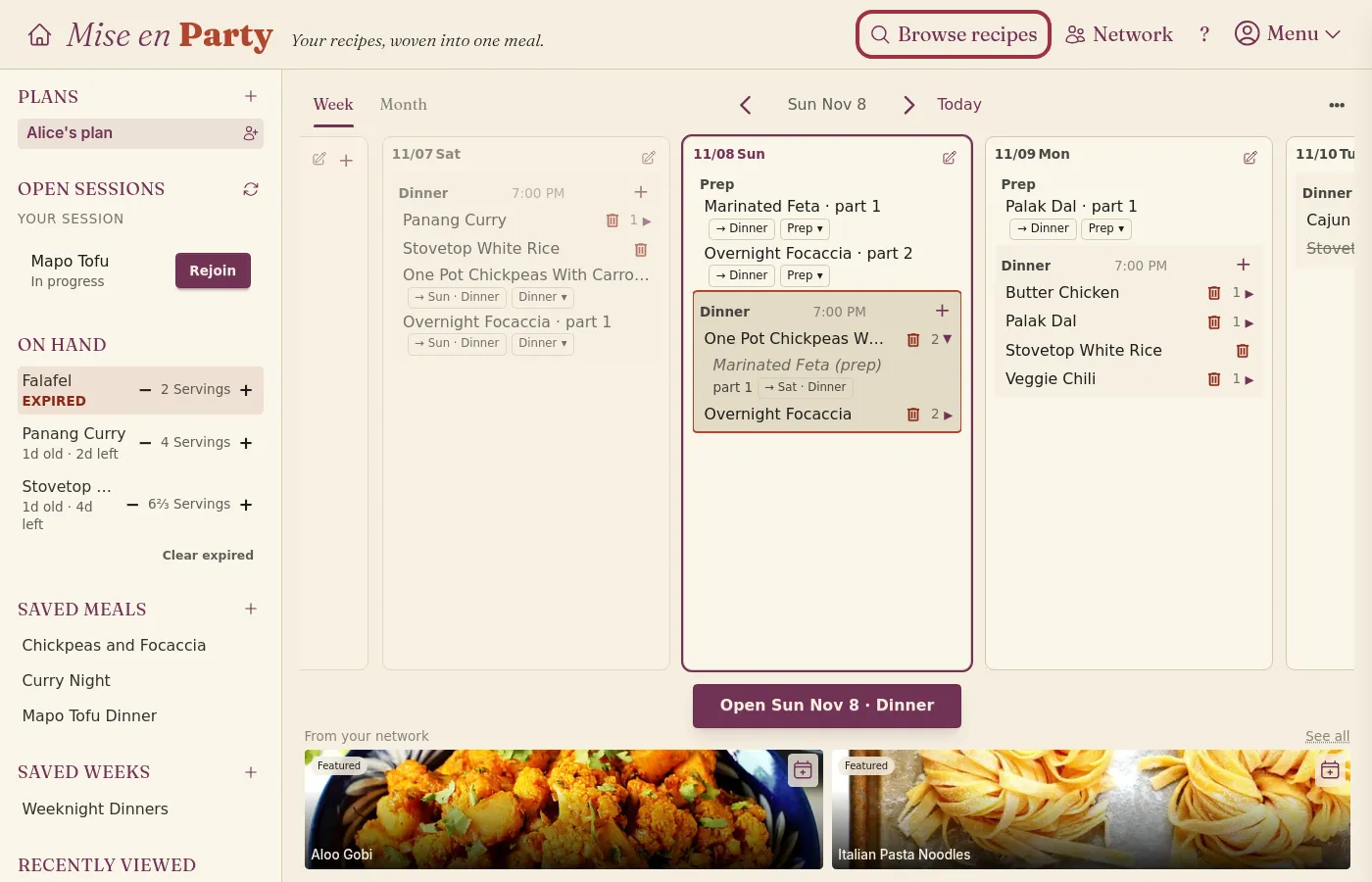
The Browse recipes button in the navigation menu opens the recipe browser, which lists the recipes stored in Mise en Party.
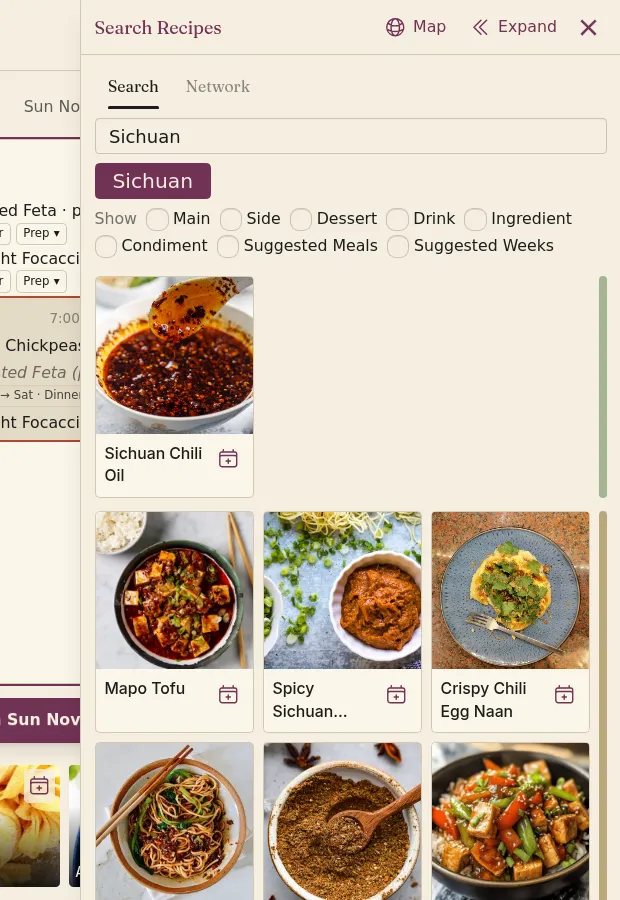
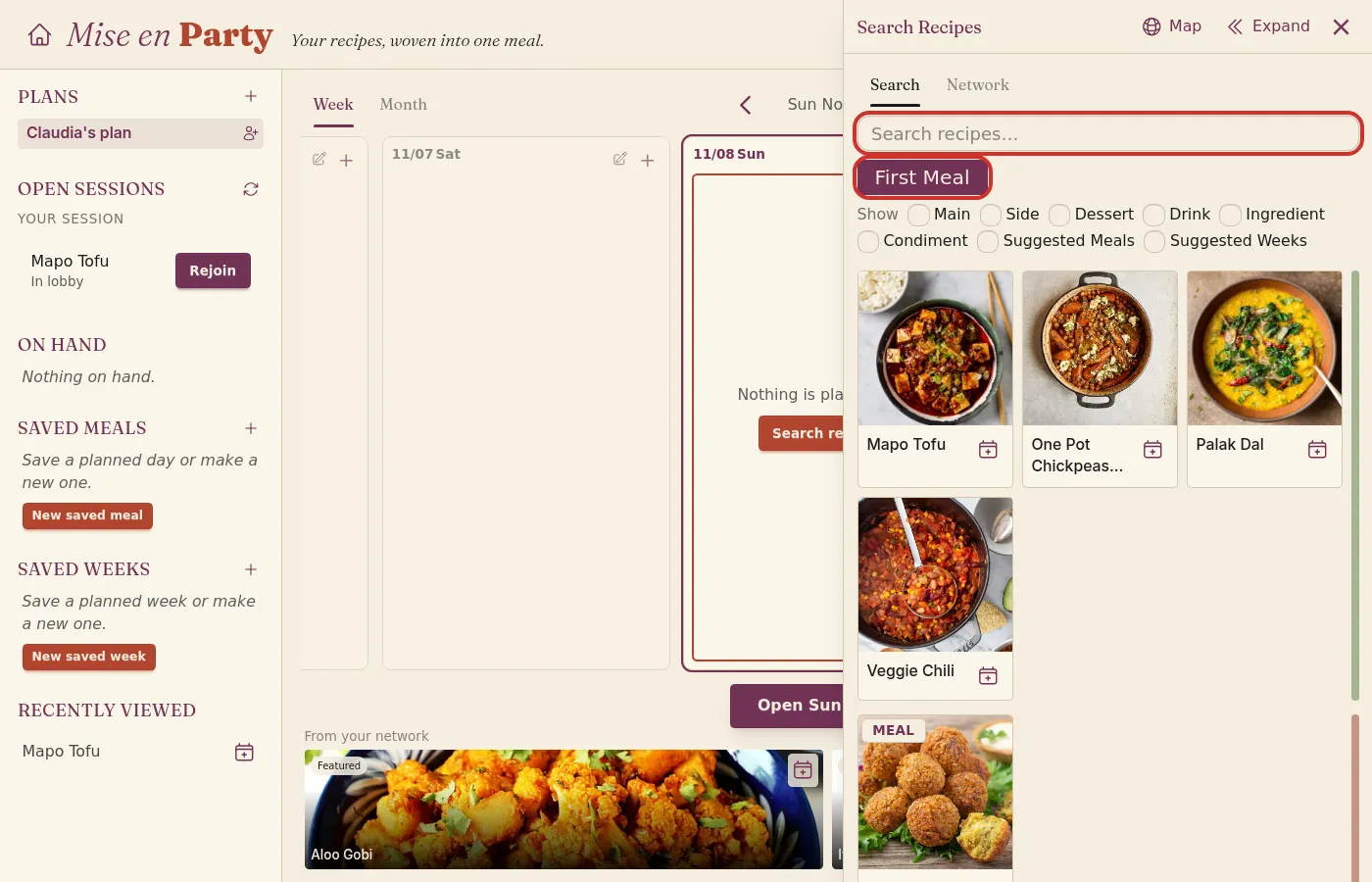
At the top, the tabs toggle the view between Search and Network. The search bar and quick filters allow you to quickly find the best recipes that match your mood. You can search for recipes themselves, culinary regions, descriptors, and individual ingredients, e.g. Thai curry, Southeast Asian, Spicy, or Lime. The resulting recipes are sorted based on the greatest match with your search terms. The Network tab shows you the most recent recipes any chefs you follow have produced, the current list of Mise en Party's featured recipes, and what your friends and family are cooking.
To help you get started, I've curated a list of starter recipes, which can be found in the recipe browser using the First Meal tag. This tag is applied automatically during your first week of cooking with Mise en Party. You can temporarily remove the tag by clicking it, or preemptively drop it from your defaults in your account settings.
2. Add a recipe
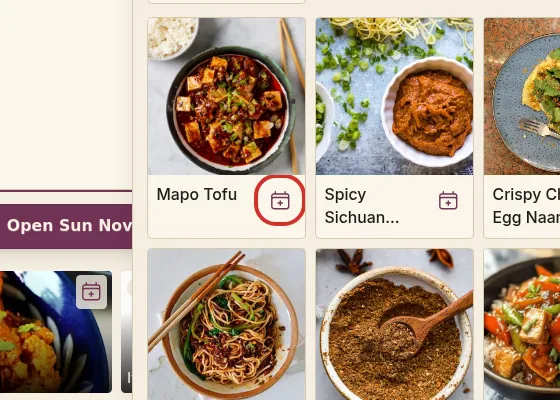
Recipes can be added to your schedule from either of the Search or Network tabs by dragging onto the schedule day or clicking the calendar icon and selecting the day from the pop-up.
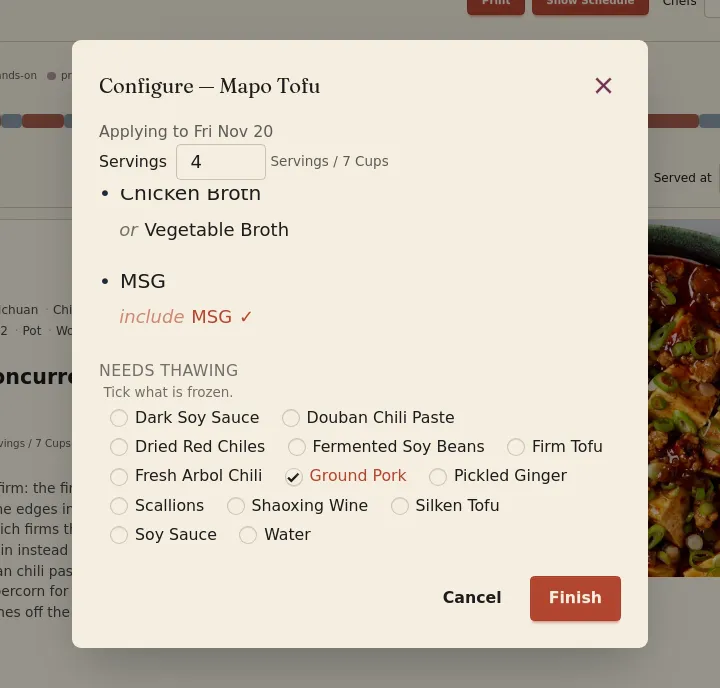
Adding a recipe to the schedule brings up the recipe configuration menu, unless the dish joins a batch you already have planned. This menu lets you set the planned servings, make any subs, and mark ingredients that require thawing from the freezer. After making these selections for the recipe, and any sub-recipes pulled with it, the new dish will appear in your schedule.
3. Customize your meals
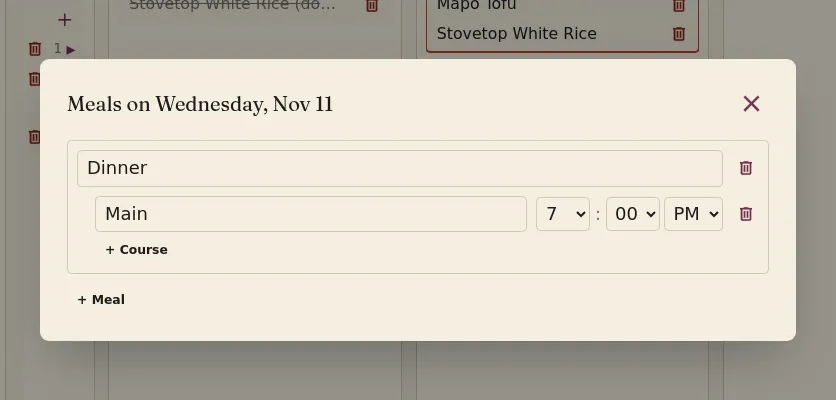
On each day, you can schedule multiple meals, for example breakfast, lunch, and dinner. Within a meal, courses are used to serve recipes at different times. By default, your recipe will be added to a meal named Dinner with a Main course.
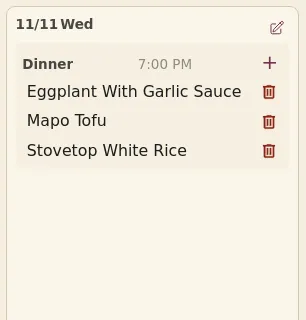
The meal names, course names, and course times can be edited using the button on the top right of the day.
4. View a meal
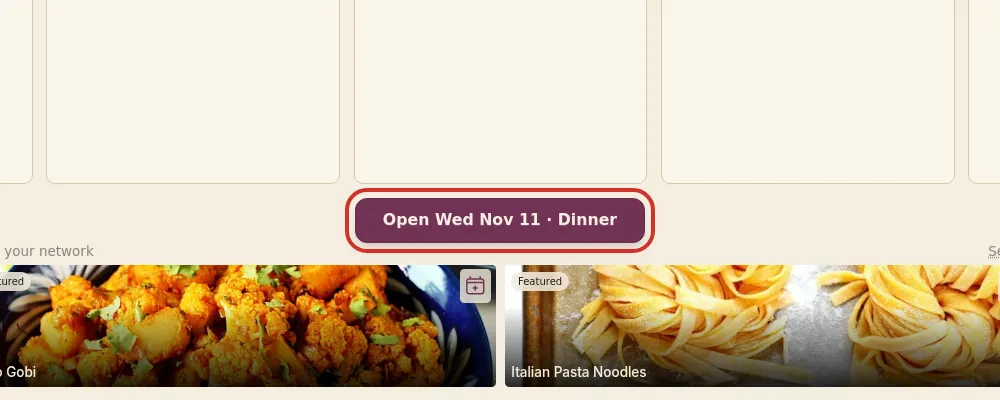
To open a meal, either double click the meal's block on the schedule or, after selecting it, click the Open button below the centered day. The meal page summarizes the planned dishes.
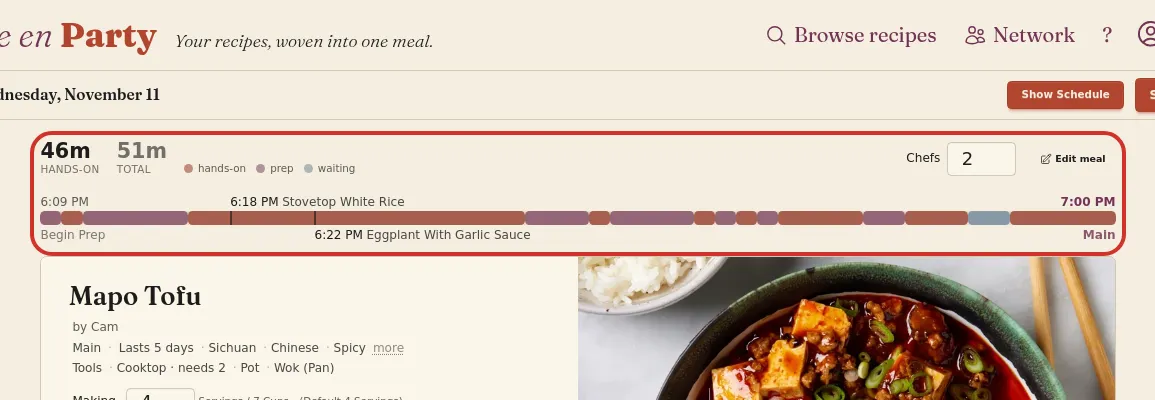
At the top, after the optimization finishes, is the expected timeline for the user-set number of chefs. The hands-on and total cooking times are highlighted above a condensed view of the cooking timeline. The timeline starts at the time to start cooking, labeled with the first recipe to start (or Begin Prep when prep comes first), and ends when the meal is served. Purple is prep work, red is hands-on time, and blue is passive waiting time. The Edit meal button opens the same meal editor as the button on the home page.
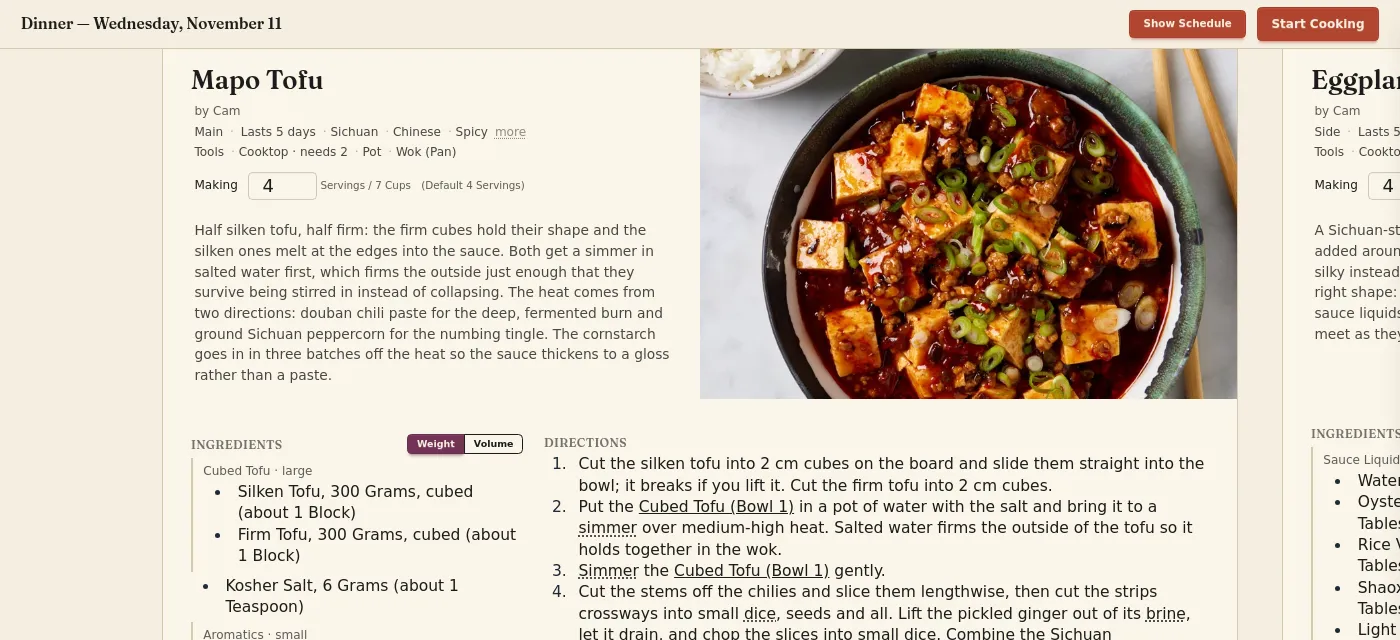
Below the timeline are the recipe cards for each planned dish. The keyboard arrow keys or the navigation buttons at the bottom of the screen cycle through the cards. Each recipe card summarizes the dish you are making and provides the standard list of ingredients and directions. The Making box sets how many servings of that dish to make, and the Weight and Volume toggle above the ingredients switches how amounts are shown.
Further down each card are the author-recommended substitutions as well as the ability to mark an ingredient as Needs thawing, which will let you schedule a time to pull the ingredient out of the freezer so it is thawed and ready for use when you start cooking.
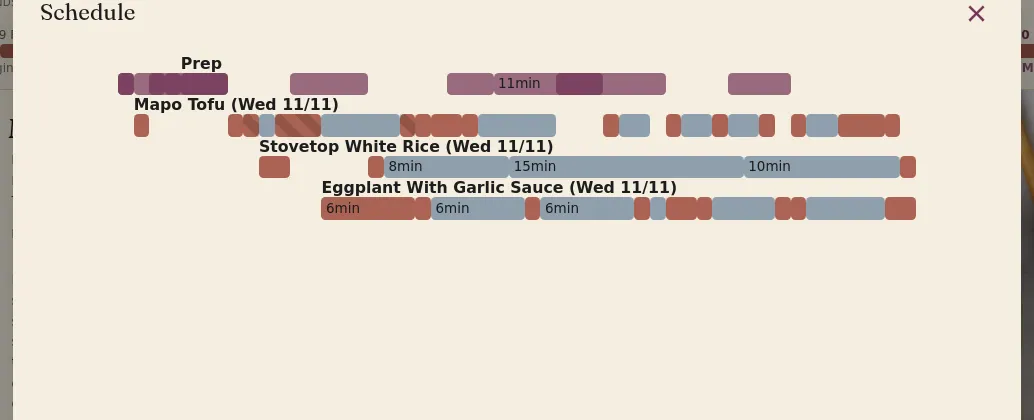
Clicking the Show Schedule button pops up a chart showing when each recipe is started and how the whole meal slots together.
5. Shop
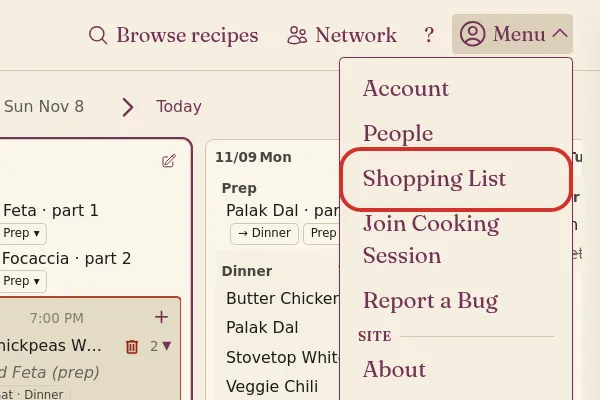
To open the shopping list, click Menu at the top right of the navigation bar and choose Shopping List.
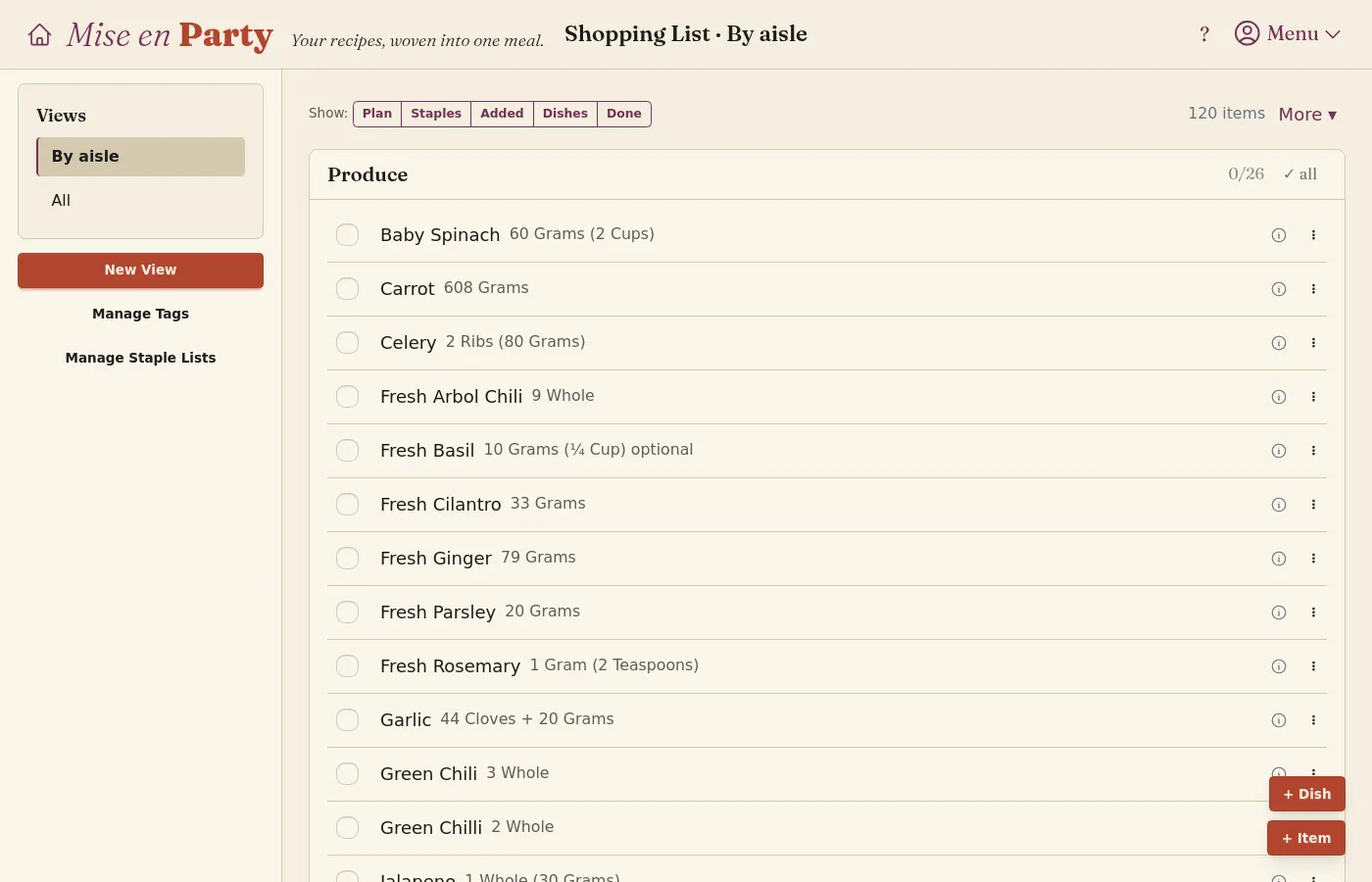
The shopping list is built from all future planned meals. You can customize the shopping list: how many days ahead it looks, and the groupings and filters that sort it.
6. Start a session
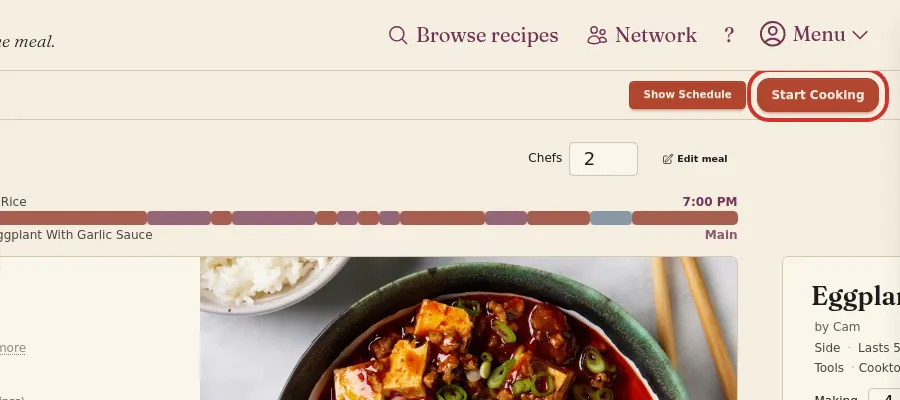
When ready to cook, hit the Start Cooking action button in the top right.
This button opens a cooking lobby that summarizes the bowls and tools required to cook the meal. Once a lobby is open, your friends and family can join using the provided session code.
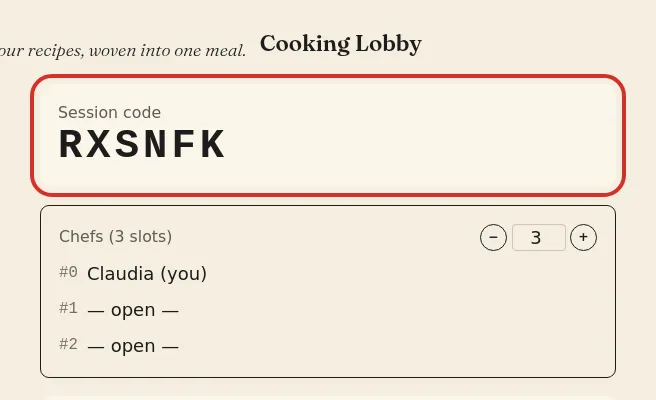
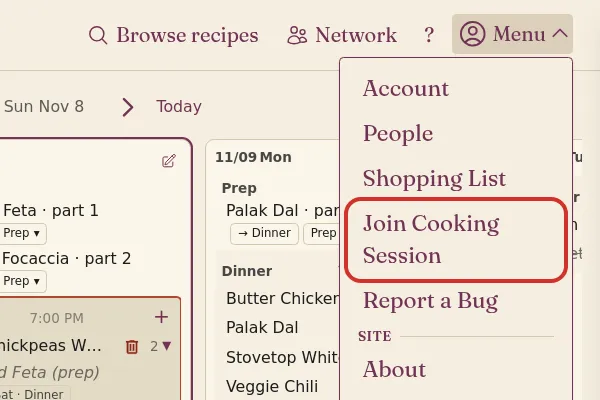
Once ready, click Start Cooking in the lobby to begin the meal!
7. Cook
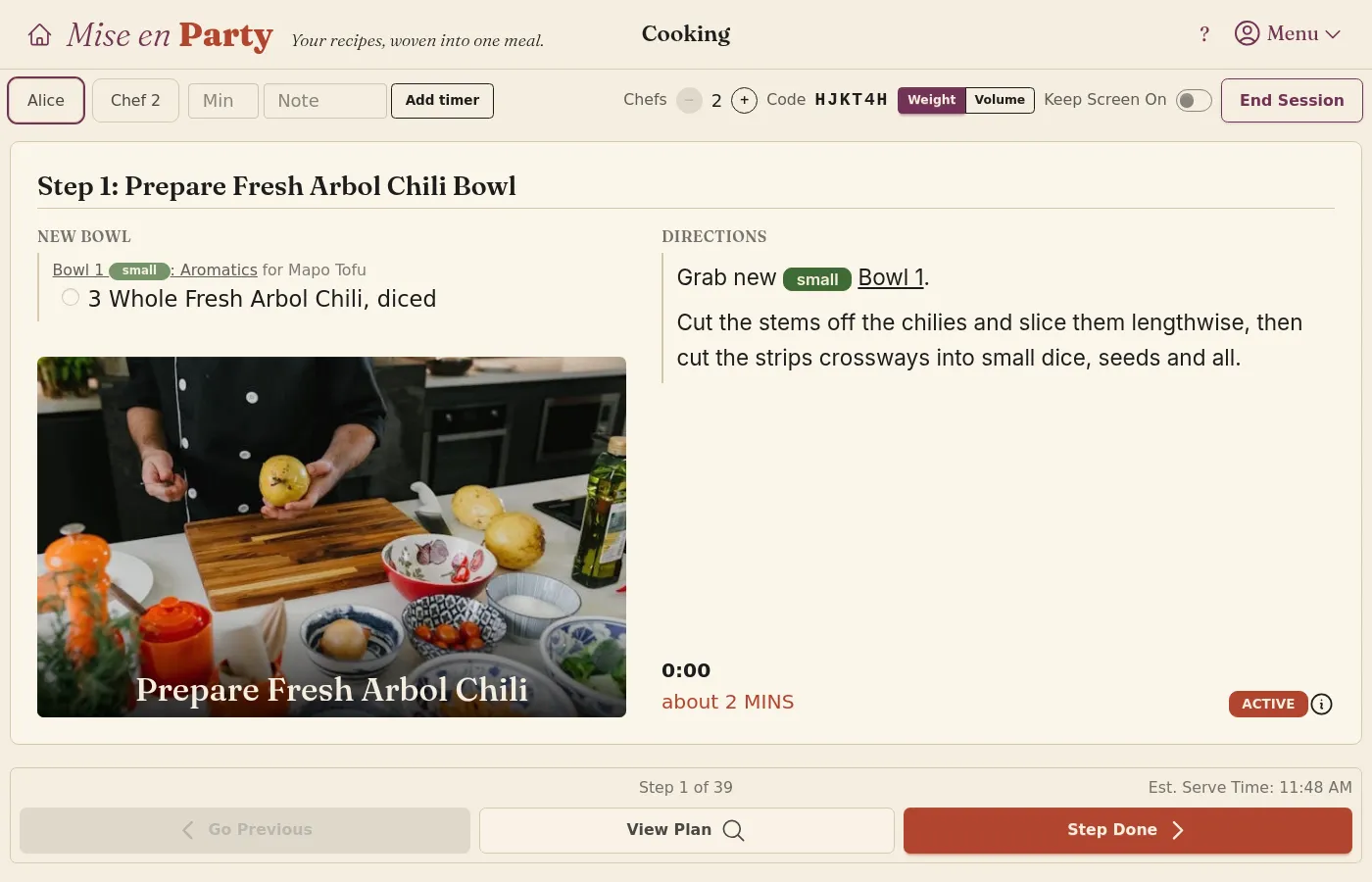
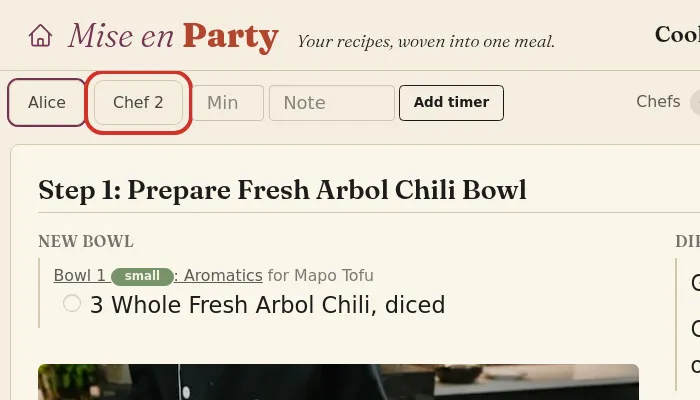
Mise en Party makes cooking easy by presenting each chef one instruction at a time; no more hunting through the list of ingredients or directions to find where you were. Each chef gets their own page on their own device. For chefs sharing a screen with the host, their pages are accessed via the tabs on the top left.
On the left are any ingredients or prepared bowls needed for this step, and on the right is the direction text. Below the directions, a timer shows how long the step has taken next to its expected time.
If you want to view future steps, centered in the bottom row is a View Plan button which brings up a menu showing how far into each recipe you have progressed. When the step is completed, either hit the Step Done button or the right arrow key on a keyboard to proceed. Go Previous returns to the step before.
What next
This should get you through your first meal with Mise en Party, but there are many more features for you to check out that make cooking and planning even easier. Next, read what mise en place is and how meals and courses are planned.