A shopping list built from your meal plan
Your shopping list is built straight from your meal plan, grouped and filtered the way you shop.
Mise en Party summarizes your planned meals into a shopping list, allowing you to create multiple views and filters to organize the ingredients by category and when you need them. The shopping list is kept in sync with any substitutions you make, updates with the planned servings, and automatically includes the ingredients for any sub-recipes that got pulled into your plan by parent recipes.
Opening your shopping list
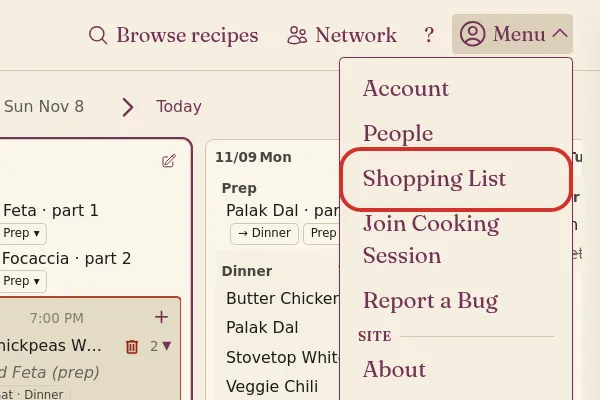
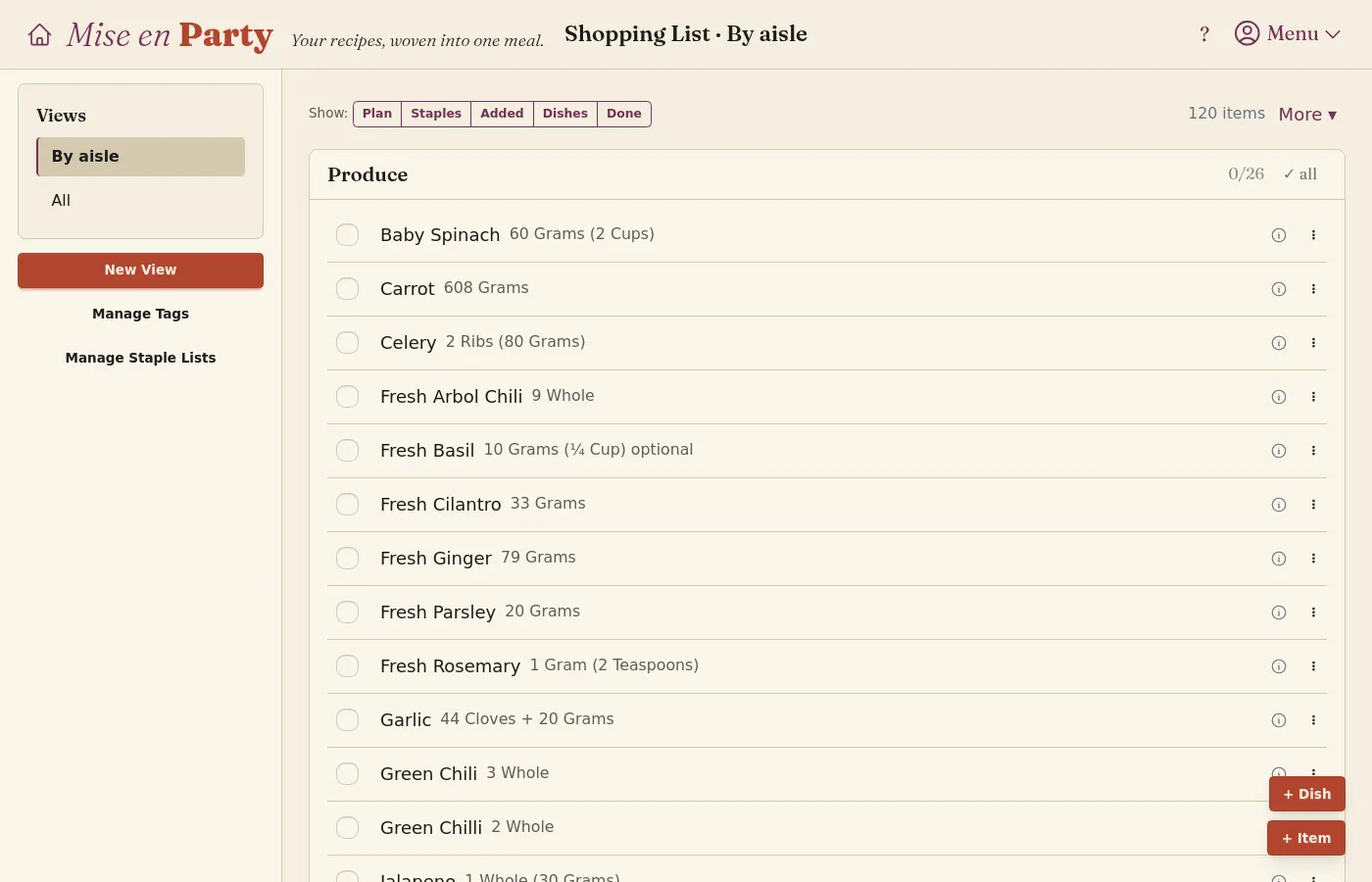
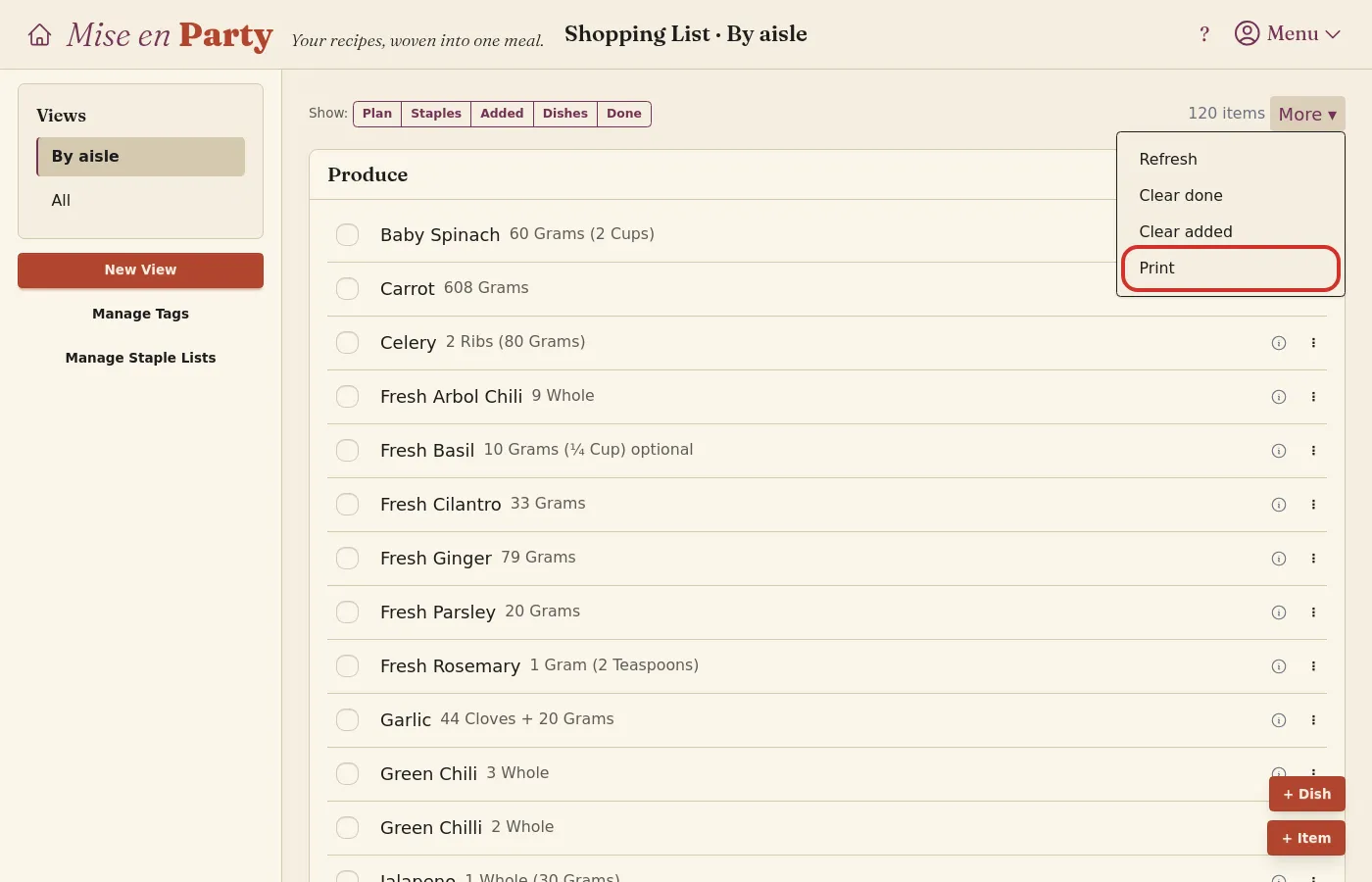
Open your shopping list from the Shopping List button within the Menu at the top right of any page. The list automatically pulls in ingredients from any recipes planned for today or on future dates. By default, the list will be organized By aisle, with a section per aisle. The All view lists the same ingredients in one alphabetical list.
How far ahead the list looks
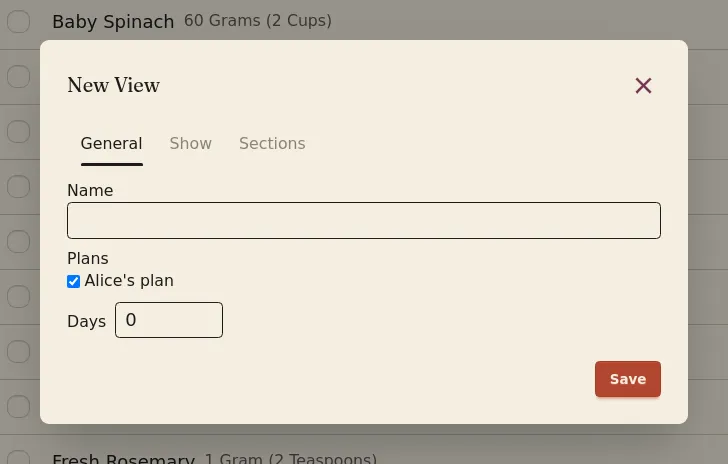
The default list, By aisle, looks at every planned meal, but you can customize the length of each view independently, letting you create week long planning views, or last minute daily views. A view's length is its Days setting, set when you click New View or Edit View.
How the list is grouped
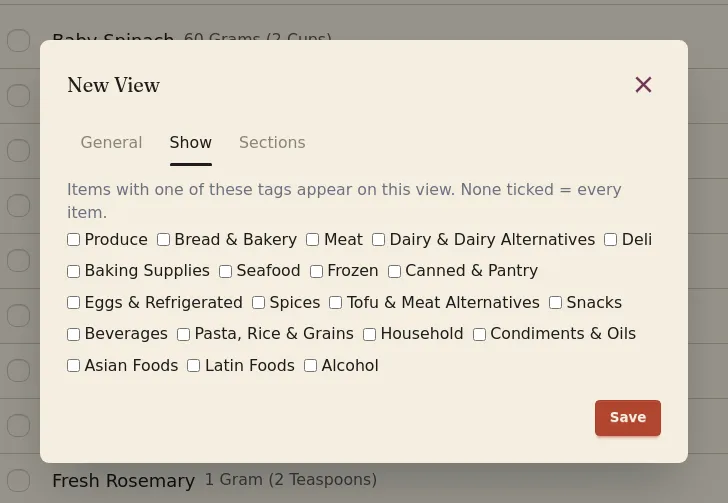
Mise en Party comes with a default list of tags that ingredients are sorted into: Produce; Bread & Bakery; Deli; Meat; Seafood; Dairy & Dairy Alternatives; Eggs & Refrigerated; Tofu & Meat Alternatives; Frozen; Pasta, Rice & Grains; Canned & Pantry; Condiments & Oils; Asian Foods; Latin Foods; Baking Supplies; Spices; Snacks; Beverages; Alcohol; and Household. Shopping views can be filtered and grouped by these tags. You can also add your own tags with Manage Tags, letting you tag ingredients yourself, such as by the grocery stores you shop at. To make a tag while tagging an item, open the item's ⋮ menu, type the new name under Add tag and pick Create. The tags ticked on a view's Show tab decide which items it shows: only items with one of those tags are shown, and with none selected, every item is. The tags ticked on its Sections tab are how the items it shows are grouped. In a view of your own, drag the sections into your store's order.
How to add something that is not in a recipe
-
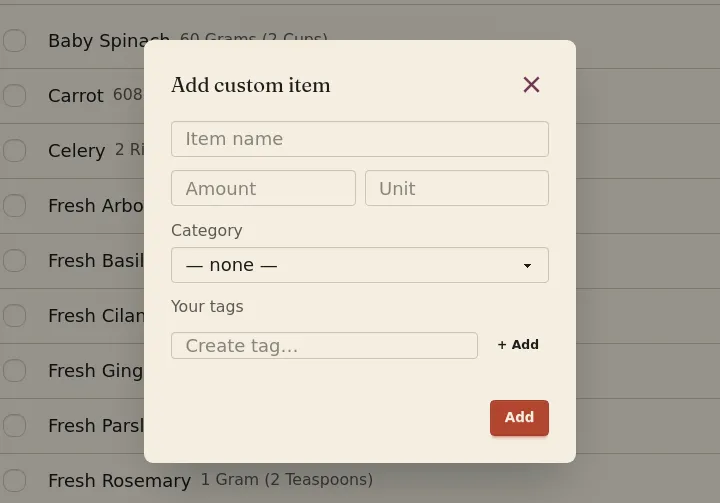
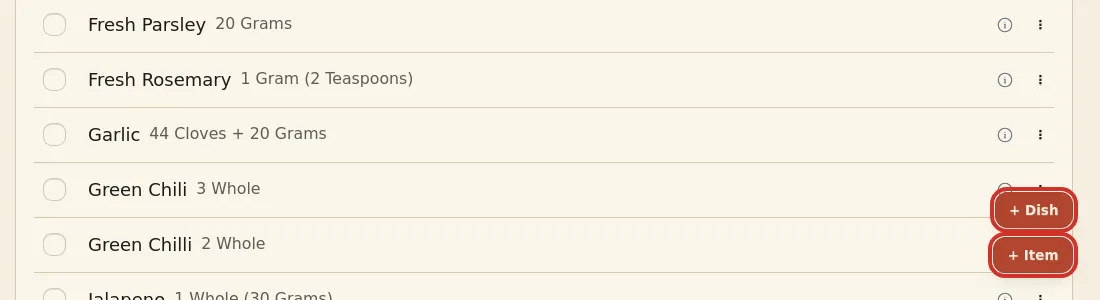
Click + Item at the bottom right to add an ingredient that is not included in any recipe. You can customize how much of the item you need and add tags in the Add custom item pop-up.
-
Click + Dish to add the ingredients of an individual recipe to the shopping list.
Showing only some items
The Show buttons above the list narrow it down by where each item came from: Plan is the ingredients of your planned recipes, Staples is the items from your staple lists, Added is the items you typed in with + Item, and Dishes is the ingredients added with + Dish. Done shows the items you have already checked off; turn it off to hide them. Each view remembers its own choice on your device.
Shopping with your household
Shopping lists attached to household plans are visible by all members of the household.
Taking it to the store
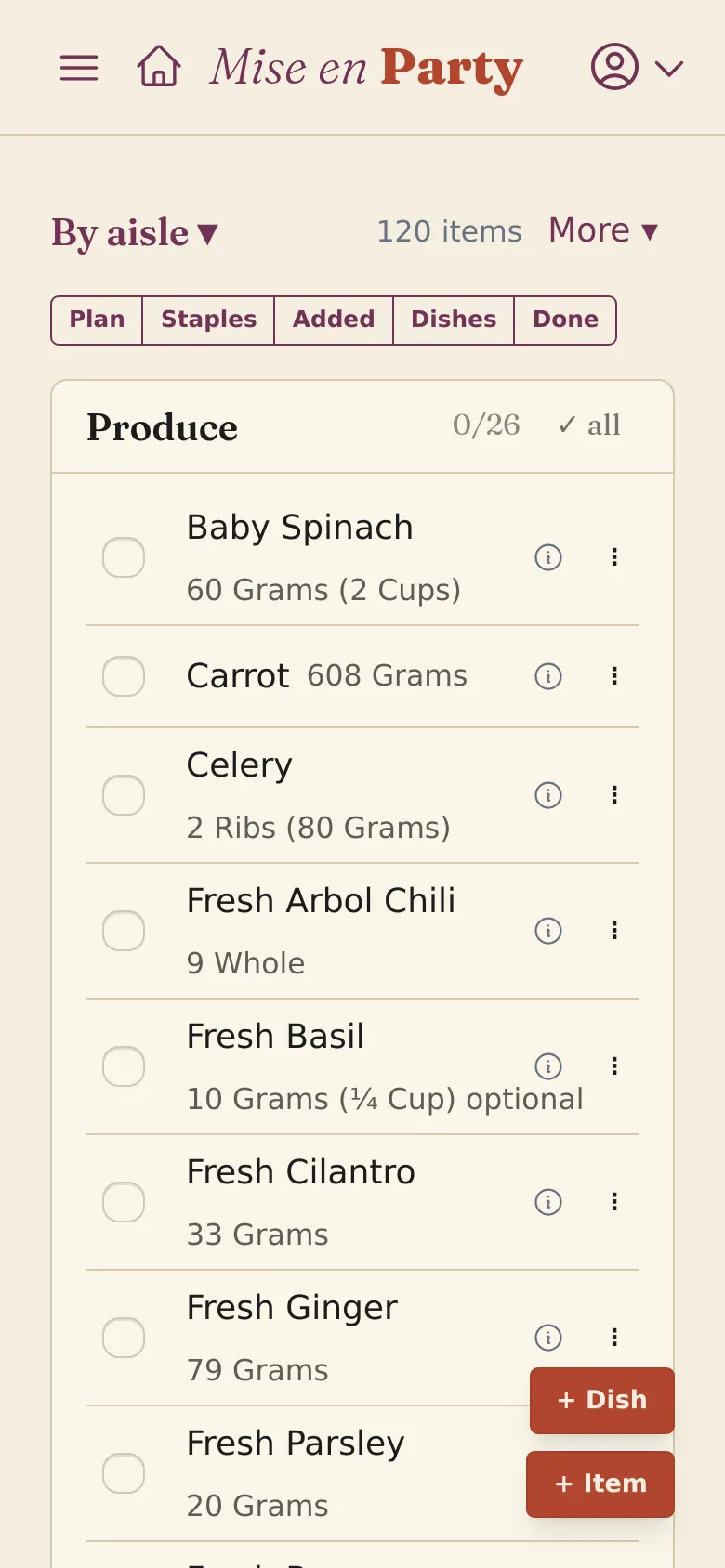
The shopping list can be printed, or downloaded as a text file, for the view you have open from Print in the More menu, or just use Mise en Party's mobile site on your phone. Amounts are rounded up to an easy measure, such as ⅔ cup instead of ½ cup + 1 tablespoon + 2 teaspoons; where a line has an ⓘ, it lists the exact amount each recipe needs.
Questions
Does an on-hand batch come off the list? When recipes are marked partially or fully premade, the shopping list automatically updates to match how much is needed to cook what is left.